
Record types
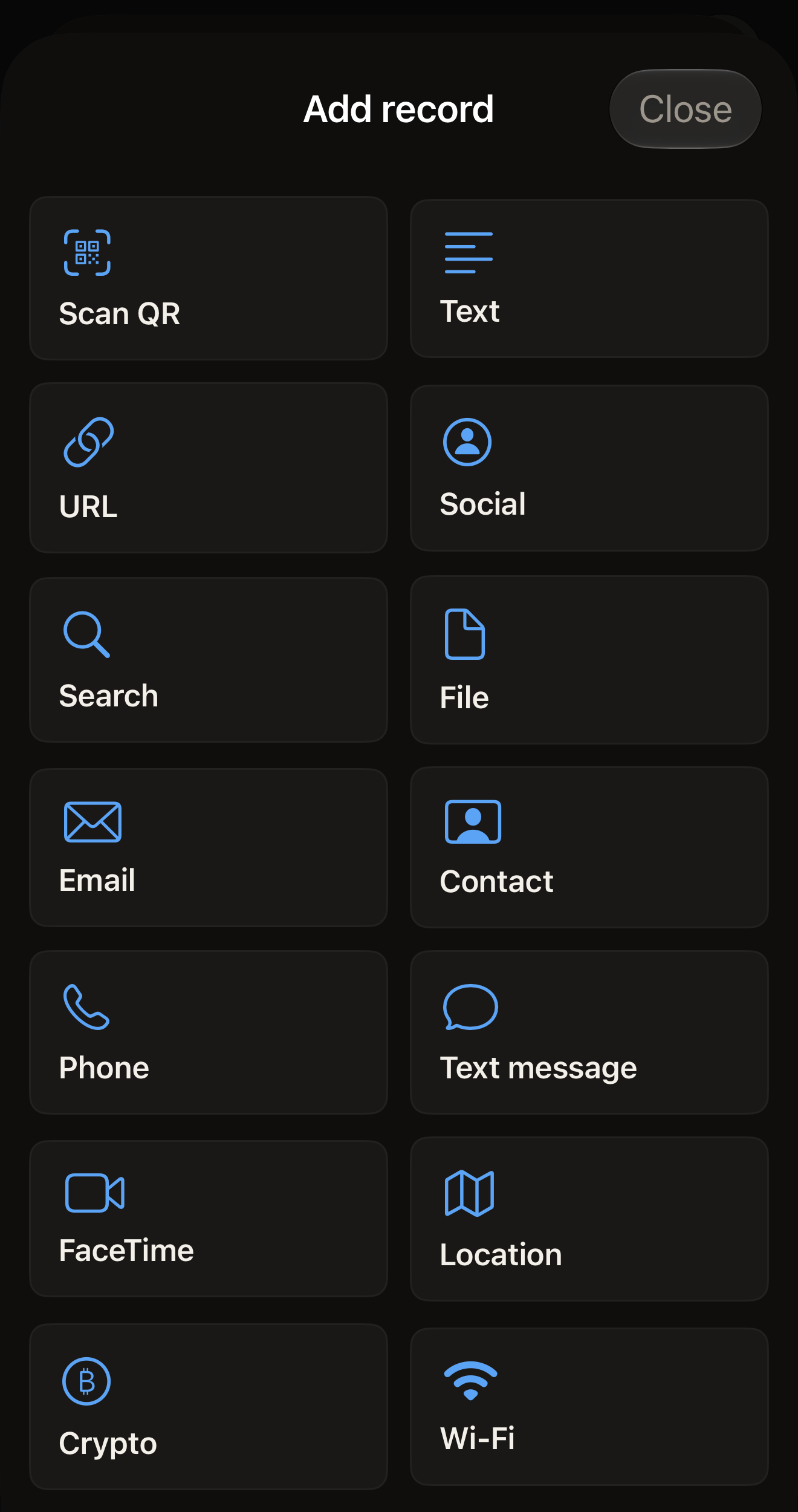
A tag holds a list of records, and each record has a type. Scan a tag with your iPhone, or tap Build on the Hex NFC home screen to start with no records. Then tap Add record on the Tag screen. The app offers 13 types, which Edit a tag's records walks through. The type you pick fixes which fields the record editor shows you, and it fixes what another phone finds when it reads the tag later. A tag you scan can also hold five types the app opens but does not offer to add, covered in Types you can open but not add.
What the type changes
Each type is a shape for one piece of information. A phone number goes in a Phone record, and a network in a Wi-Fi record. The app turns what you type into the bytes the NFC standard defines for that shape. Choose the closest type rather than putting a phone number in a Text record: a reading phone acts on the shape, not on your intention.
What happens on the reading phone is that phone's decision. A link is a link everywhere. A network is not: as the Wi-Fi form says, "iPhone will not auto-connect from NFC, but Android readers will. Hex NFC writes the record to spec so any reader can pick it up."
Records take room, and a small chip runs out of it. What each chip holds is in Tags that work with Hex NFC.
Text and links
| Type | What you fill in | What lands on the tag |
|---|---|---|
| Text | Text, Language code, Encoding | Your words, marked with the language code you enter and written in the encoding you choose. |
| URL | URL | The address as you typed it. Common web prefixes are stored as a single byte, so the record takes less room. |
| Social | Platform, Handle | A profile link, built from the platform you choose and the handle you enter. |
| Search | Engine, Query | A search address for the engine you choose, carrying your words. |
| File | Path | A file address. The form puts it this way: "Stored as a file:// URL. iOS limits the directories this can target." |
A new Text record starts with the language code en, and the field's own note gives the form to use: "ISO 639-1, e.g. en, fr, ja". Encoding holds two entries, UTF-8 and UTF-16, and a new record starts on UTF-8.
On most platforms a Handle is the name that ends your profile address, and you enter it without the @ in front of it. Six of them want something else, because their addresses are not built from a handle.
For Whatsapp, enter the phone number a wa.me link carries, which is the full international number with no plus sign.
For Skype, enter the Skype name.
For Steam, enter the custom URL from your profile address.
For Slack, enter the workspace name that starts its address.
For Facebook and Wechat, enter whatever their own link carries, which may be a name or a number.
The app puts what you enter into the platform's profile address and changes nothing else about it.
Engine holds Google, Google Images, Bing, Yandex, DuckDuckGo, YouTube and Wikipedia. Platform holds Facebook, Bluesky, X, Github, Instagram, Line, Linkedin, Medium, Pinterest, Skype, Slack, Snapchat, Soundcloud, Steam, Telegram, Threads, Tiktok, Twitch, Vk, Wechat, Whatsapp and Youtube, each spelled on screen the way it is spelled here.
People and messages
| Type | What you fill in | What lands on the tag |
|---|---|---|
| To, Cc, Bcc, Subject, Body | A mail address carrying the recipients, the subject line and the message. | |
| Contact | Full name and Organization under Identity, then Phones, Emails and Websites under Reach | A contact card, which a reading phone can add to its address book. |
| Phone | Phone number | A phone address. A phone that reads it offers to dial the number. |
| Text message | Recipient, Message | A message address holding the number and the text to send. |
| FaceTime | Target, Mode | A FaceTime address, for video or audio as you chose. |
Six of these fields take more than one entry: To, Cc, Bcc, Phones, Emails and Websites each split on commas, which is why To and Phones show the hint "comma-separated". Leave Organization empty and it is left out of the card.
Places, money and networks
| Type | What you fill in | What lands on the tag |
|---|---|---|
| Location | Source, then either Latitude and Longitude or Map URL | A map address: a pair of coordinates, or the map link you paste. |
| Crypto | Network, Address, Amount, Message | A payment address on the network you choose. Amount and Message are left out when you leave them empty. |
| Wi-Fi | Network name (SSID), Password, Authentication, Encryption, Hidden network | A network record holding the name, the password and the security settings you picked. |
Source decides the rest of the Location form. It holds Coordinates, Apple Maps URL and Google Maps URL. Coordinates shows Latitude and Longitude. Enter each one as a decimal number, such as -33.8688 and 151.2093. A decimal comma works too, so 48,8566 is read as 48.8566. The other two sources each show Map URL instead. You supply the address yourself. Copy the link from the map app or from the browser you found the place in, then paste it into the field. The tag gets the link exactly as you pasted it. Which of the two you chose is not written to the tag at all. Pick whichever one describes where your link came from. The app never reads where your iPhone is. Every location is one you type or paste, or one that arrives from a QR code or a tag you scanned.
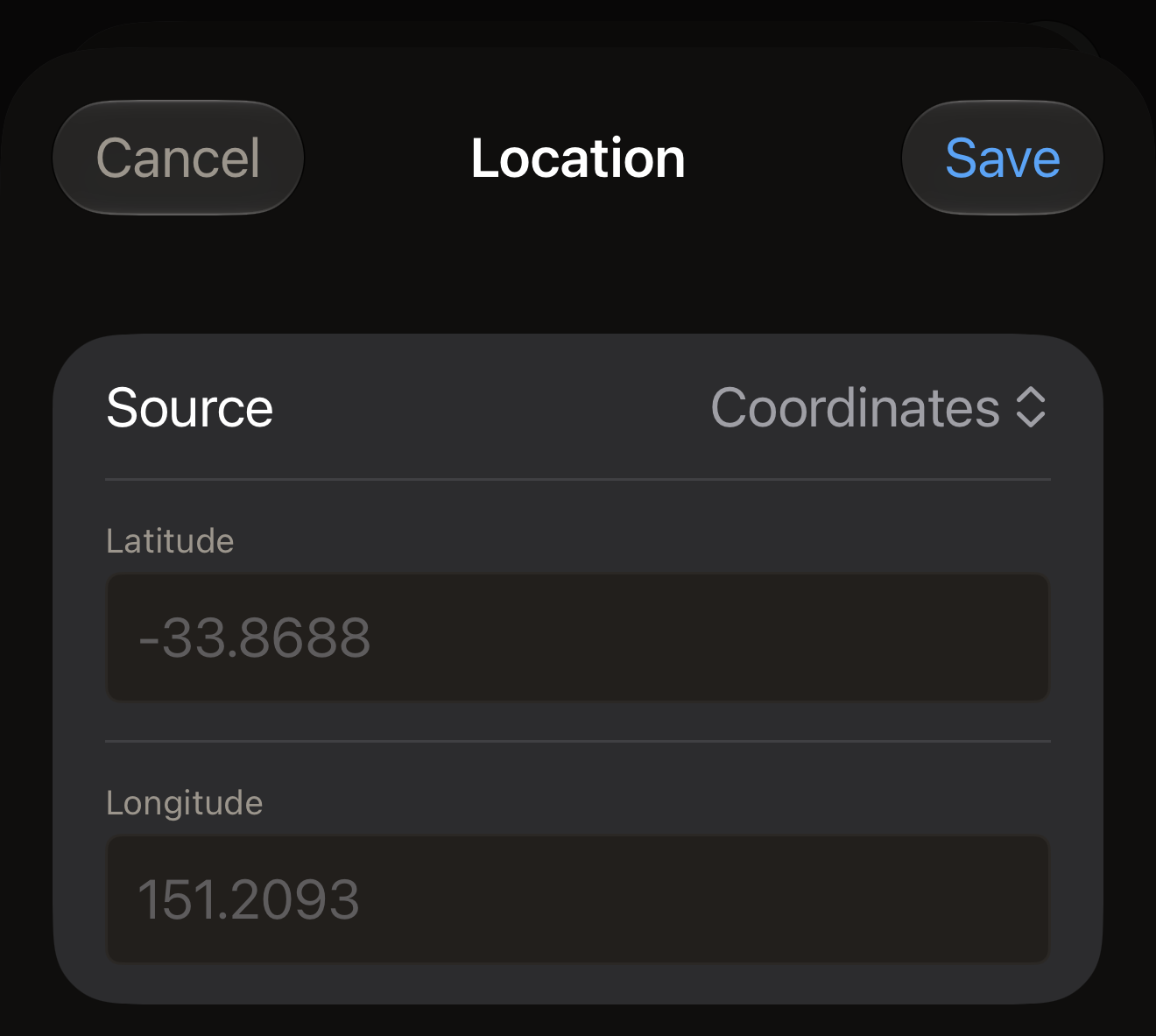
A Location record needs both a latitude and a longitude, or a map URL. Until it has one, the form reads "Enter a latitude and a longitude, or a map URL. Until then, this record cannot be written to a tag." and the record's row on the Tag screen reads "No location". A Location you add and then leave with Cancel stays in the list in that state. Writing the tag while the list holds one stops before the iOS scan sheet opens, with "A location record is missing its coordinates or map URL. Nothing was written to the tag." Fill the record in or delete it, then write again. Save as preset… holds back in the same way: while the list holds such a record, Save stays dimmed and the save sheet says why. A preset cannot be changed once saved, so one saved with an empty Location in an earlier version of the app is refused every time you write it. Build its records again on the Tag screen, save them as a new preset, then delete the old one.
Network holds Bitcoin, Ethereum, Monero, Litecoin, Dogecoin and Solana. Amount is a plain text field with no hint and no check on it. The app copies what you type into the payment link unchanged. Write the figure the way the wallet you use writes it. Read the amount back in that wallet before anyone sends anything.
On the Wi-Fi form, Authentication starts on WPA2 Personal and Encryption starts on AES, which is what most home routers run. Authentication also holds WPA3 Personal, WPA Personal, WEP and Open. Encryption also holds TKIP, TKIP + AES, WEP and None. Match the pair your router's own settings page names.
Types you can open but not add
A scanned tag, a preset or a history entry can hold five types that Add record does not offer: App link, Bluetooth, Data, Shortcut and Raw. None of them has a form of its own. Tapping one opens a text editor holding the record as JSON, under the note "This record type is edited as JSON. While the text is not a valid record, Save keeps the last valid version."
| Type | What lands on the tag |
|---|---|
| App link | An App Store address, written as a link. |
| Bluetooth | A pairing record holding a device address and a device name. |
| Data | The record's bytes, labelled with its media type. |
| Shortcut | An address that runs a shortcut by name, with the input the record gives it. |
| Raw | The record's exact bytes, written back unchanged. |
The editor opens with the record already written out. The keys that already hold a value are on screen, and you change those values in place. A key with no value yet is absent. The optional keys in the table below stay absent until you type them in, spelled exactly as they are listed here. Leave id and type as the app wrote them. The rest are these:
| Type | Keys you fill in |
|---|---|
| App link | appStoreURL, then universalLink and displayName if you want them |
| Bluetooth | deviceMAC, then deviceName if you want it |
| Data | mimeType, and payload as base64 |
| Shortcut | shortcutName, then input if the shortcut takes one |
| Raw | tnf as a number from the list below, then typeBytes, idBytes and payload as base64 |
A Data record carrying the word Hello as plain text reads this way:
{
  "id" : "9E2B1C64-6A2F-4D0E-9A52-0B7F1C3D8E44",
  "mimeType" : "text/plain",
  "payload" : "SGVsbG8=",
  "type" : "data"
}
There is no converter behind that payload. The value has to be base64 you produce somewhere else. Pasting your text in raw does not encode it. A payload that is not valid base64 stops the whole record reading. The following note covers that case.
Raw is the type the app falls back to when it reads a record it cannot place. The usual thing to do with one is write it back unchanged. Changing one starts with tnf, the number the NDEF standard uses to say what sort of name typeBytes holds. The value is one of these numbers.
0 for an empty record.
1 for a name from the NFC Forum's own list.
2 for a media type.
3 for an absolute address.
4 for a name a vendor defines.
5 for unknown.
6 for the continuation of a record that was split.
typeBytes, idBytes and payload are each base64, and idBytes is usually empty.
{
  "id" : "3F7A9D21-4C88-4B0A-BE13-52C0A7E6D915",
  "idBytes" : "",
  "payload" : "SGVsbG8=",
  "tnf" : 4,
  "typeBytes" : "ZXhhbXBsZS5jb206bm90ZQ=="
}
Saving, discarding and deleting a record
Save keeps your changes, and Cancel drops them. Delete record takes the record out of the list and closes the editor without asking first. Cancel has gone by then, so a record you delete that way has to be added again. All three act on the copy the app holds, never on the tag. The tag changes only when you write it, which Edit a tag's records covers.
Every record is built from what you type. Nothing in the record editor reads your contacts, your location or the Bluetooth devices around you. Privacy and your data says what the app keeps.
What a scanned tag comes back as
The app sorts what it reads into the closest type it knows. A phone, message, mail, FaceTime, map, payment, shortcut or file address opens as that type, and any other link opens as a URL record. A contact card, a network record and a pairing record each return to their own type. Any other media type becomes a Data record, and anything left over becomes a Raw record, which writes back byte for byte.
See also
Documentation licensed under CC BY 4.0