
Erase or format a tag
Hex NFC has two repairs for a tag that will not read, and they do opposite jobs. Erasing writes an empty message over the tag's data area, so readers see a blank tag and the chip stays writable. Formatting writes the Capability Container, the short header a reader looks for before it reads anything else on the tag.
Before you start, scan the tag: on the Hex NFC home screen, tap Scan, then hold the tag against the top of your iPhone. The Tag screen opens once the app has read it. It also opens for a tag that is not formatted, a tag whose data will not read, and a MIFARE DESFire card that is not set up for NDEF. In each case it follows the scan on its own, with nothing to tap. A warning on the scan screen is a diagnosis rather than a dead end. On the Tag screen, tap the menu button at the top right, beside Write, then tap Operations…. Both repairs sit under Dangerous Actions at the bottom of the Operations screen. Remove NDEF setup sits beside them and undoes a format on a MIFARE DESFire card. Every operation there confirms the tag before it changes it:
A change to a tag's protection holds the tag twice, and so does every operation under Dangerous Actions. The first tap reads the tag's UID and closes straight away, so you can type. The app then asks you to type that UID back, character for character, and the second tap makes the change on the tag you confirmed. Present a different tag on the second tap and the app refuses it rather than changing the wrong one.
Which repair the tag needs
The app names the fault on the screen where you meet it, and each name points to the repair it needs.
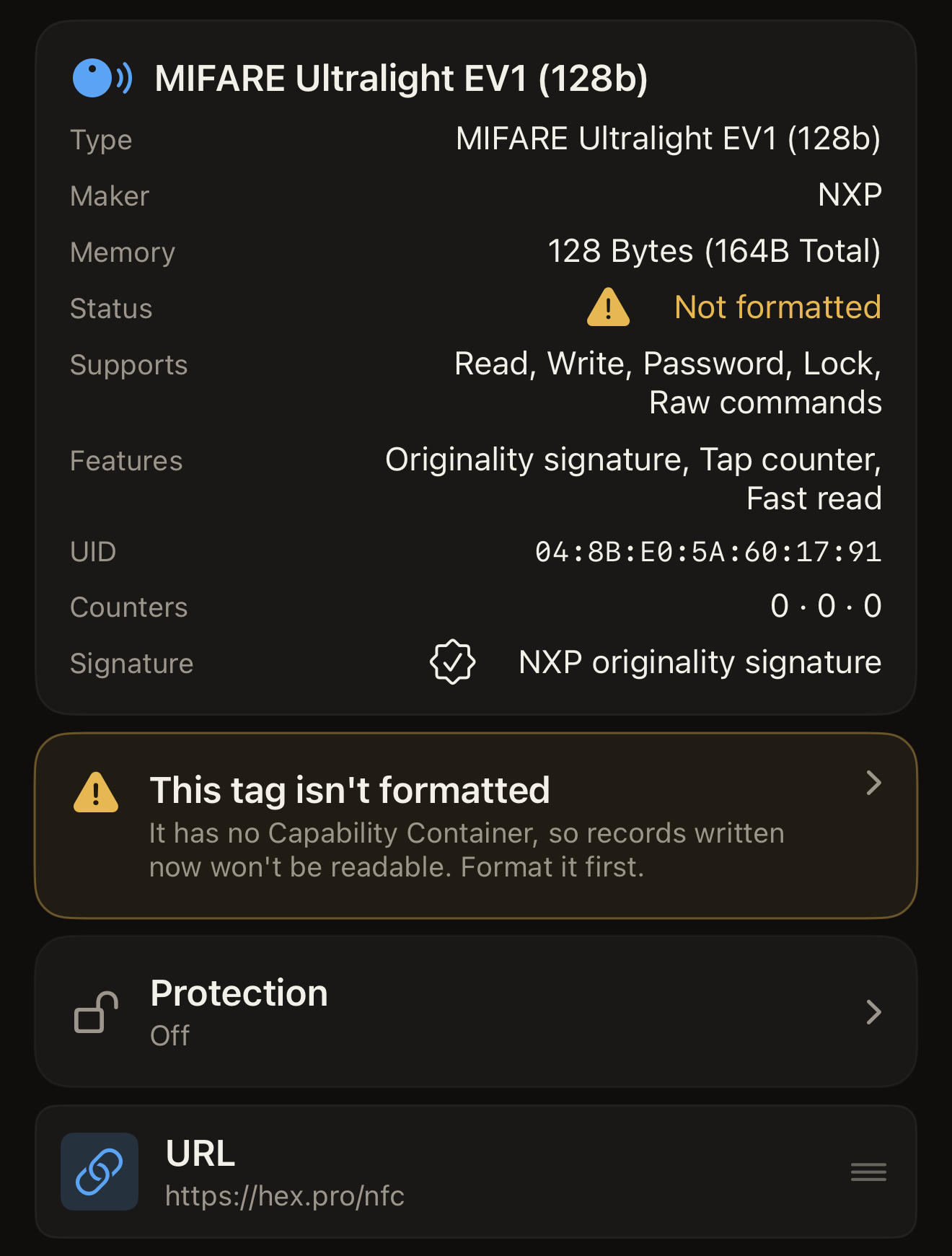
Format the tag when the scan screen reads "This tag isn't formatted yet", or the Tag screen reads "Not formatted". The tag has no Capability Container, so nothing you write to it is readable.
Erase the tag when the scan screen reads "This tag's data won't read", or the Tag screen reads "Data won't read". The Capability Container is already in place, so a format has nothing there to repair.
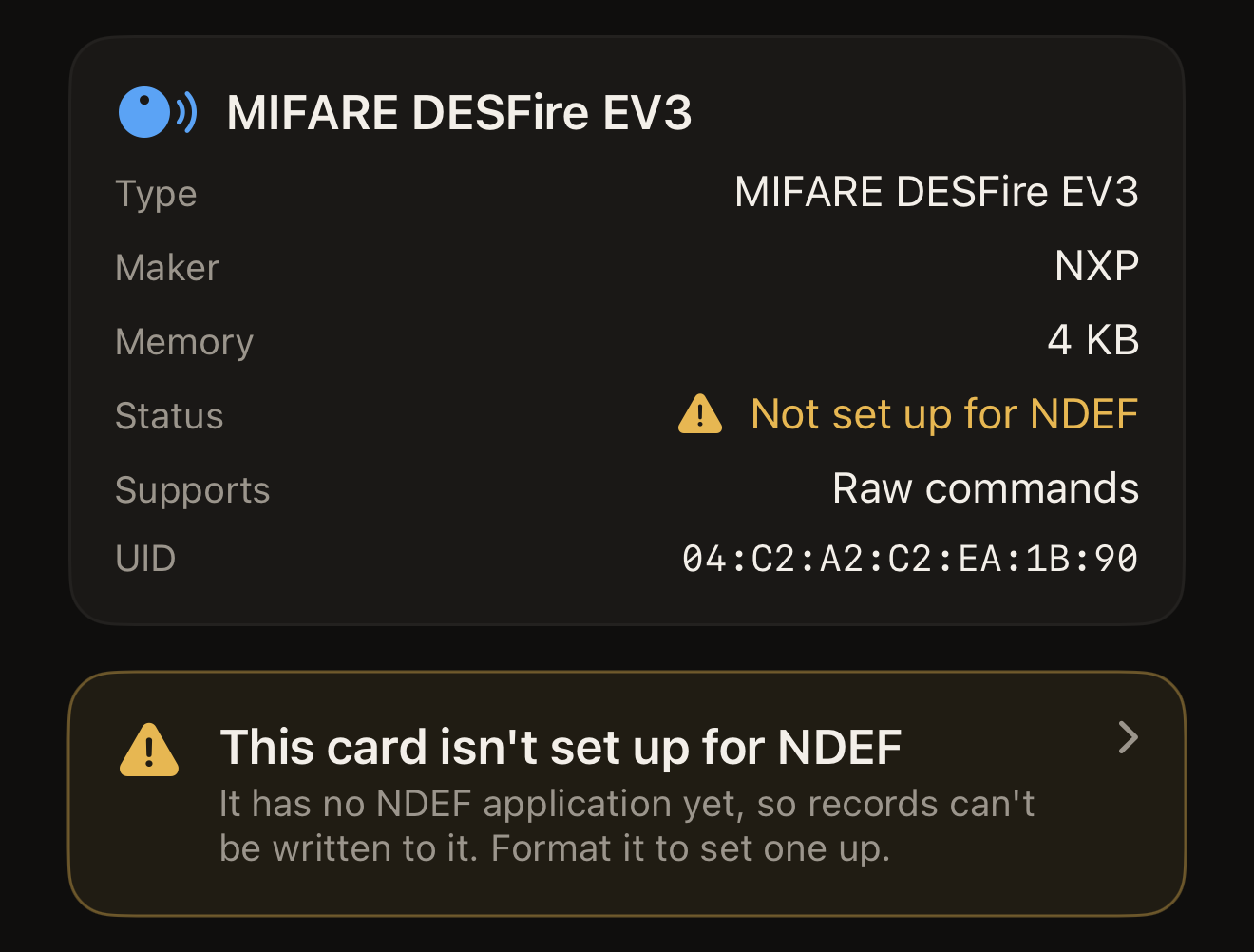
Format the card when the scan screen reads "This card isn't set up for NDEF yet", or the Tag screen reads "Not set up for NDEF". The card is a blank MIFARE DESFire, or one whose setup an earlier format did not finish, so records cannot be written to it yet. A transit or access card never shows this.
On a tag that still accepts writes, the Tag screen also shows a warning you can tap. It reads "This tag isn't formatted", "This tag's data won't read" or "This card isn't set up for NDEF". Tapping it opens Operations. A permanently locked tag shows the status but no warning, because both repairs are writes.
Erase a tag
An erase clears the tag's records and leaves the chip writable. It also rebuilds a data area that has stopped reading.
Step 1Open the erase screen
On the Operations screen, tap Erase. The screen that opens says what the erase writes, and warns you before anything reaches the tag.
Step 2Start the erase
Tap Erase tag. Your iPhone asks you for the tag.
Step 3Hold the tag against your iPhone
Rest the top of your iPhone on the tag. The screen reads "Tap 1 of 2. Hold the tag to identify it.", then shows the tag's UID.
Step 4Type the UID back
The screen reads "Type this tag's UID to confirm." and puts the UID beside an empty field. Enter those same characters in the field, with no colons between them and in either case, then tap Erase tag. If the tag's password covers its data area, a card headed "Tag is protected" sits above the field and asks for the password or key the tag holds now. Erase tag does nothing until that is filled in.
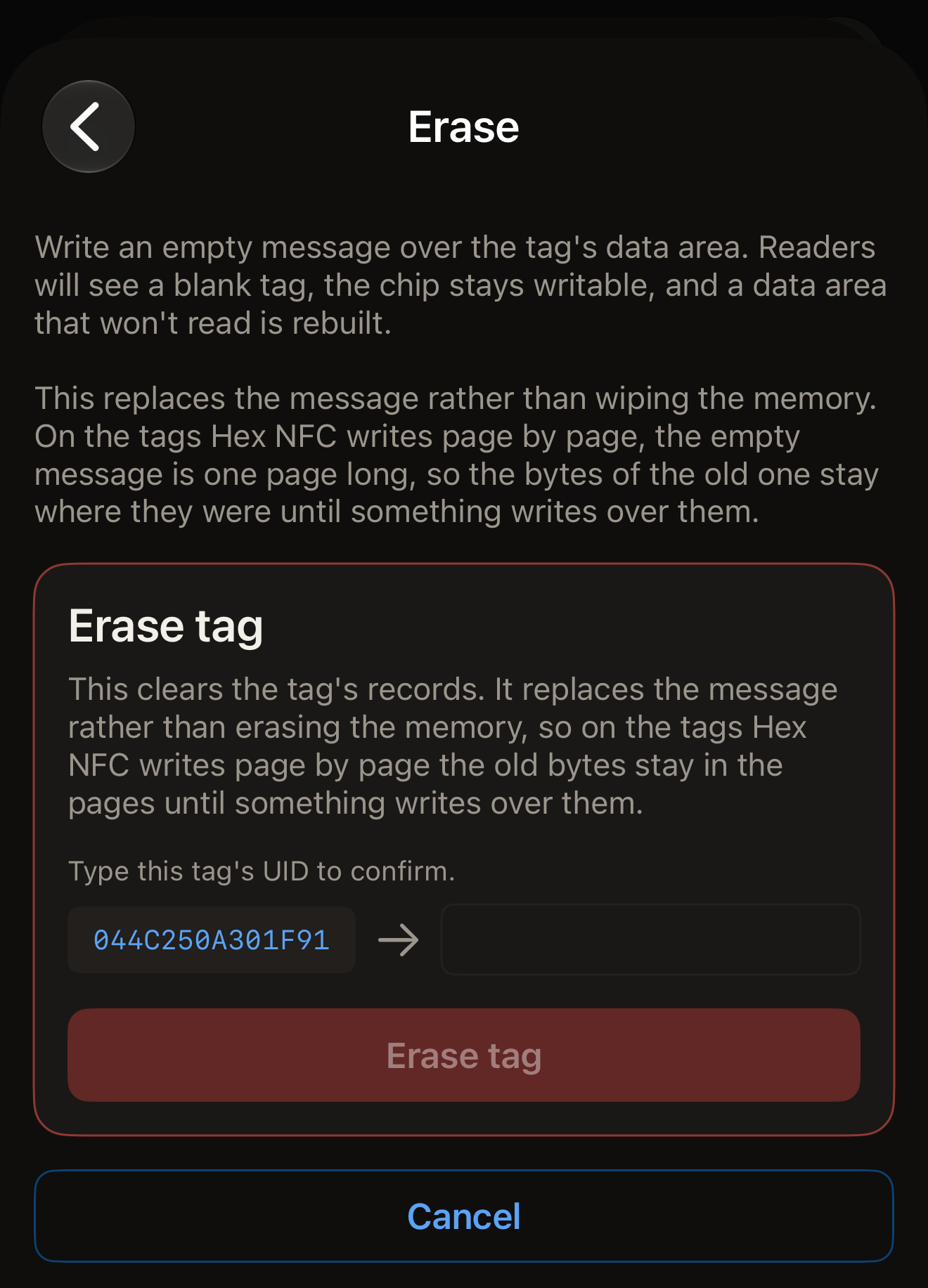
After the first tap, the tag's UID sits on the left of an empty field, and Erase tag stays dimmed until you type it. Step 5Hold the tag a second time
Hold the tag against the top of your iPhone again. The screen reads "Tag erased." once the app has read the empty message back off the tag.
An erase ends one of two ways. It reports "Tag erased." once the empty message reads back. Otherwise it reports an error naming the fault, with the details under it for a bug report. If a tag does not scan or write covers what to try next.
Format a tag
Use a format on a fresh chip that was not shipped pre-formatted. A format writes the Capability Container and leaves records already on the tag where they are. On ISO 15693 tags such as ICODE SLIX2, a tag that has never held a message also gets an empty one, so a reader sees a blank tag rather than a broken one. To clear a tag that has records on it, erase it instead. On a blank MIFARE DESFire card, a format sets the card up for NDEF, as the last part of this section describes.
Step 1Open the format screen
On the Operations screen, tap Format.
Step 2Start the format
Tap Format tag. Your iPhone asks you for the tag.
Step 3Hold the tag against your iPhone
Rest the top of your iPhone on the tag. The screen reads "Tap 1 of 2. Hold the tag to identify it.", then shows the tag's UID.
Step 4Type the UID back
The screen reads "Type this tag's UID to confirm." and puts the UID beside an empty field. Enter those same characters in the field, with no colons between them and in either case, then tap Format tag.
Step 5Hold the tag a second time
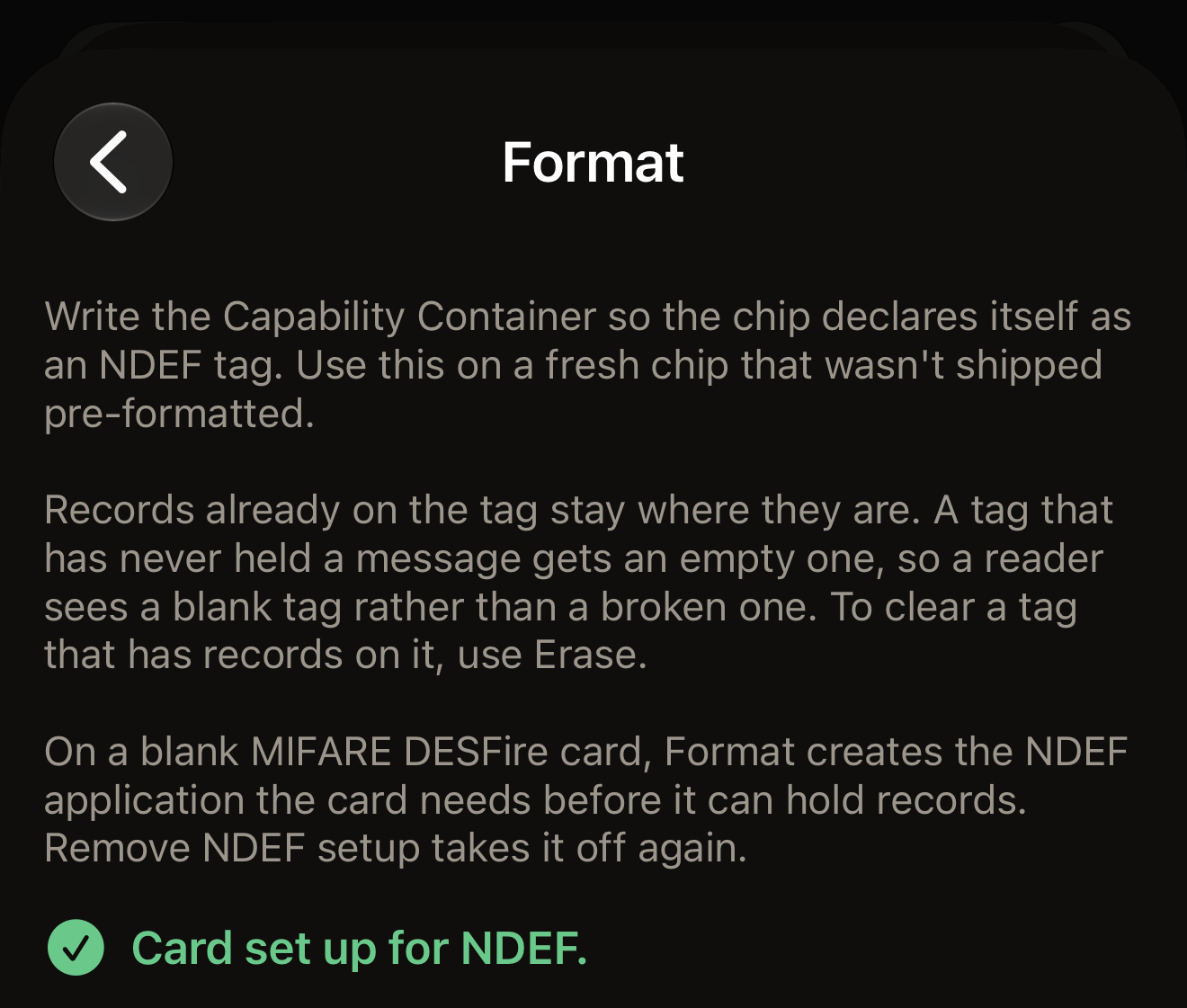
Hold the tag against the top of your iPhone again. The screen reads "Tag formatted." once the app has read the header back. On a MIFARE DESFire card it reads "Card set up for NDEF." instead.
On an NTAG or MIFARE Ultralight tag, a format ends in one of three reports:
"Tag formatted." means the header is written, read back and in place, and the tag is ready to take a message.
"Already formatted: nothing written." means the tag was carrying the right header, so nothing reached it. The app sends you to Erase, because a tag that still will not read has its fault in the data area.
"This tag already has a different Capability Container." means the header on the tag does not match the chip the app identified. Nothing was written.

An ISO 15693 tag reports "Tag formatted." every time, because its Capability Container block stays rewritable and the app writes it on every run.
Format a MIFARE DESFire card
A blank MIFARE DESFire EV1, EV2 or EV3 card holds no applications, and a format gives it the NDEF application it needs before it can hold records. The steps are the ones above, with the same two taps and typed UID. The app sizes the card's NDEF file to its free memory, up to 4 KB on a 4K card. Once the card is set up, iOS reads and writes it like any other NDEF tag.
On a MIFARE DESFire card, the second tap ends in one of two reports:
"Card set up for NDEF." means the NDEF application is on the card and reads back, and the card is ready for records.
"Already set up for NDEF: nothing written." means Hex NFC set this card up before, so nothing reached it.
The app refuses these cards and writes nothing to them:
"This card already has other applications on it, so it can't be set up for NDEF here. Nothing was written." A transit or access card ends here.
"This card needs its master key before anything can be added to it, so it can't be set up for NDEF here. Nothing was written."
"This card was set up for NDEF by another app, so Hex NFC leaves it as it is. Nothing was written."
If the card leaves your iPhone during the second tap before the setup has written anything, the screen reads "Lost the tag mid-read. Keep it pressed against the top of the phone and try again." and nothing was written. Once the setup has started writing, it reads "The card is partly set up. Tap Format again to finish." or "The card may be partly set up. Scan it to check, or tap Format again." Another format picks up where the last one stopped.
A card that runs out of free memory reads "There isn't enough free memory on this card for an NDEF file. Use Remove NDEF setup to clear what was started." on the first attempt. A later attempt on the same card reads "There isn't enough free memory on this card for an NDEF file. Nothing was written." Either way, Remove NDEF setup clears the card, as the next section describes.
Remove a card's NDEF setup
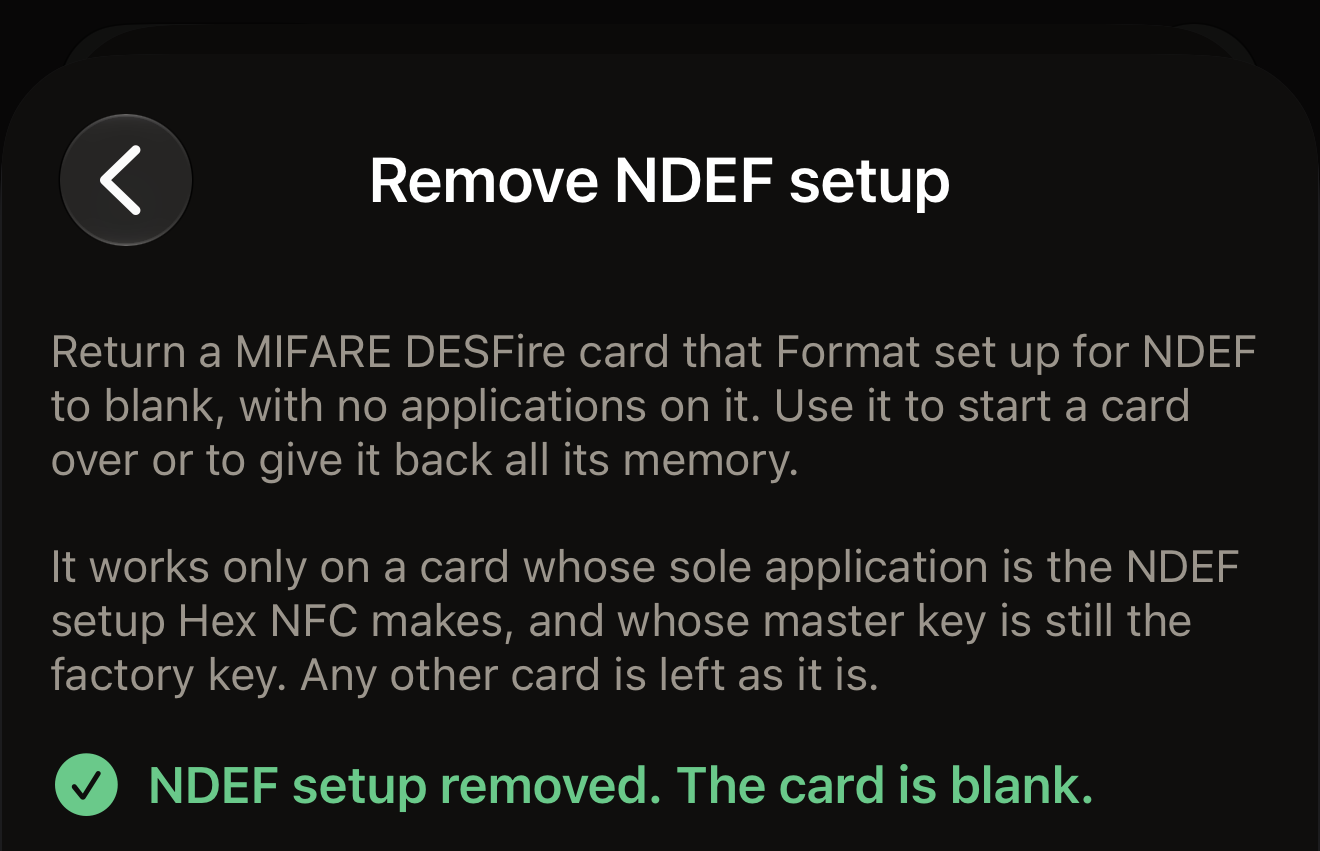
Remove NDEF setup returns a MIFARE DESFire card that a format set up to blank. It deletes the card's NDEF application and every record in it, and gives the card back all its memory. It works only on a card whose sole application is the NDEF setup Hex NFC makes, including a setup a format left part way, and whose master key is still the factory key. Any other card is left as it is.
Step 1Open the remove screen
On the Operations screen, under Dangerous Actions, tap Remove NDEF setup.
Step 2Start the removal
Tap Remove NDEF setup. Your iPhone asks you for the card.
Step 3Hold the card against your iPhone
Rest the top of your iPhone on the card. The screen reads "Tap 1 of 2. Hold the tag to identify it.", then shows the card's UID.
Step 4Type the UID back
The screen reads "Type this tag's UID to confirm." and puts the UID beside an empty field. Enter those same characters in the field, with no colons between them and in either case, then tap Remove NDEF setup.
Step 5Hold the card a second time
Hold the card against the top of your iPhone again, and keep it there until the result appears. The screen reads "NDEF setup removed. The card is blank." once the app has read the card back and found no applications on it.
A card that is already blank reports "This card is already blank: nothing changed." The app refuses these cards and changes nothing:
"This card has other applications on it. Removing the setup would delete them too, so nothing was changed."
"This card's NDEF setup was made by another app, so Hex NFC won't remove it. Nothing was changed."
"This card's master key isn't the factory key, so the app can't remove its setup. Nothing was changed."
If the card leaves your iPhone during the second tap before the removal has changed anything, the screen reads "Lost the tag mid-read. Keep it pressed against the top of the phone and try again." and nothing on the card has changed. If it leaves once the removal has started, the screen reads "The card may already be blank. Scan it to check." If the scan still shows the card set up for NDEF, run Remove NDEF setup again: each removal reads the card first, and a card that is already blank reports "This card is already blank: nothing changed."
Once the setup is gone, a scan shows "Not set up for NDEF" beside Status on the Tag screen again, and a format sets the card up afresh.
Clear a tag from the record list
A tag can also be cleared from the Tag screen, without going through Operations. A clear write carries no protection change, so it holds the tag once and asks for no typed UID. A write that also arms or removes a password holds the tag twice and asks for the UID. That is the same two-tap confirmation every operation under Dangerous Actions asks for.
Step 1Delete every record
On the Tag screen, swipe a record left and tap Delete, until the screen reads "No records left". The removals are not on the tag yet.
Step 2Write the empty result
The screen now reads "You've removed every record. Write to clear the tag, or add one back." Below that line, above Add record, tap Write to clear tag. Your iPhone asks you for the tag.
Step 3Hold the tag against your iPhone
Rest the top of your iPhone on the tag and keep it there until the write finishes.
See also
Documentation licensed under CC BY 4.0