
Remove a tag's password
A password you put on a tag comes off again, as long as you can still present the password the tag is holding. Once it is off, anyone can read and write the tag, and its password or key goes back to the chip's factory default.
Before you start, open Hex NFC on your iPhone and scan the tag so it is on the Tag screen (see Scan a tag). Have the password it holds to hand. The card at the top of that screen names the chip on its first line, above the tag's UID. That name decides which kind of secret the removal asks for. A chip named on neither route below carries no password Hex NFC can remove, because the app never puts one on it.
Remove a password in Operations
This route covers every chip the app can protect. It asks for nothing before the first tap. That tap reads which chip the tag is, and the screen then asks for the secret the tag holds now: a 4-byte password on the NTAG21x chips (NTAG213, NTAG213 TT, NTAG215, NTAG216), MIFARE Ultralight EV1 or ICODE SLIX2, and a 16-byte key on an NTAG424 DNA or a MIFARE Ultralight C. NTAG 210µ has no password to remove. Chip support matrix lists what each chip carries.
Step 1Open Operations
On the Tag screen, open the menu in the top right, then tap Operations….
Step 2Open Remove password
Tap Remove password.
Step 3Start the removal
Tap Remove password. The warning above it says what the removal costs: "After this, anyone can write this tag again."
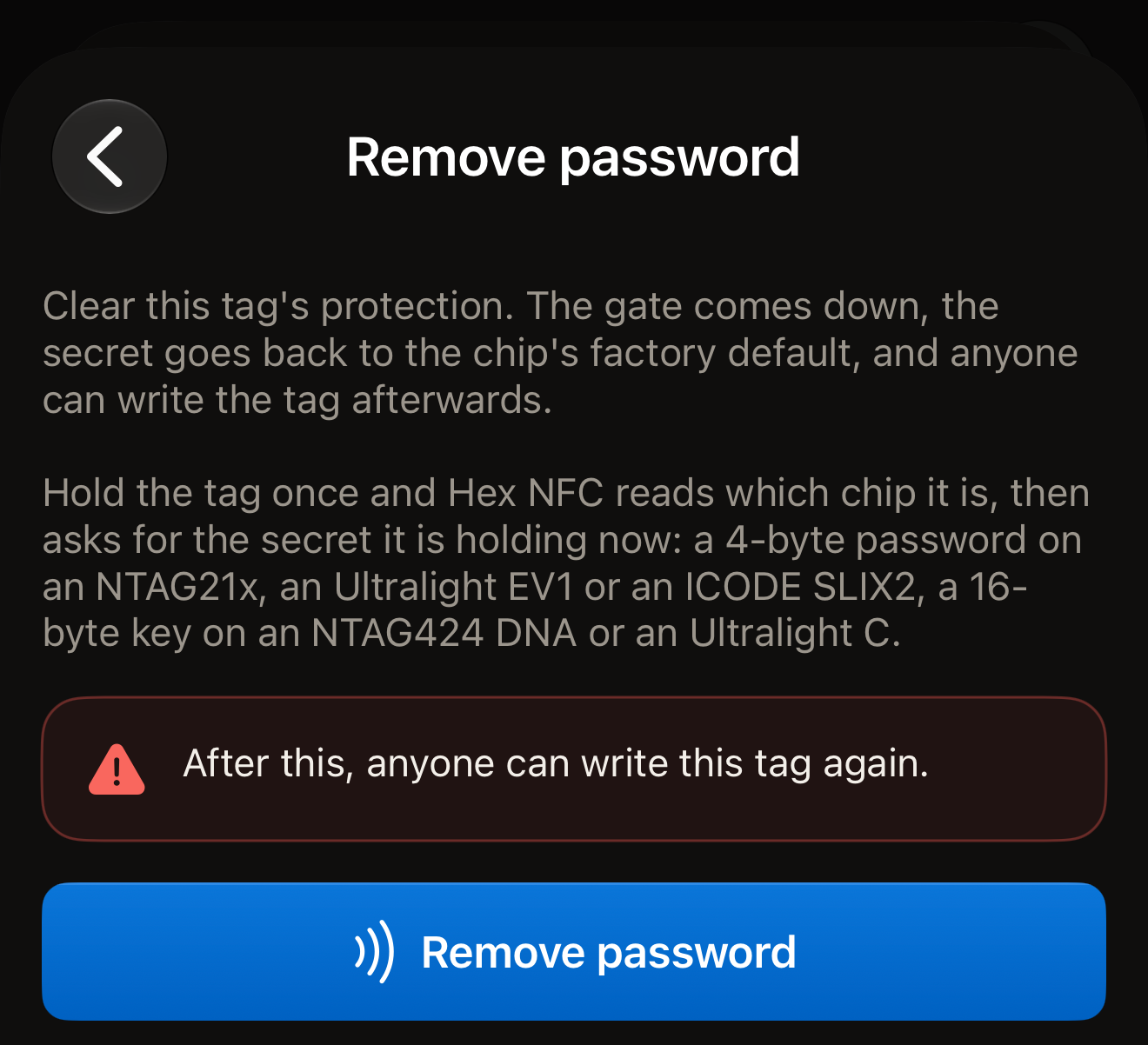
The Remove password button you tap is the one at the foot of the screen, under the warning. Step 4Hold the tag against the top of your iPhone
The app reads the tag's UID and ends the tap so you can type.
Step 5Enter the secret the tag holds
A card headed "Tag is protected" asks for the secret the tag holds now. Enter a password in Tag password (4 bytes) as eight hexadecimal characters. On an NTAG424 DNA the field is Tag key (16-byte AES), and on a MIFARE Ultralight C it is Tag key (16-byte 3DES). Separators are ignored, so
FF FF FF FFandFFFFFFFFare the same value.Step 6Confirm the tag
The screen shows the tag's UID beside the field, under "Type this tag's UID to confirm." Type those characters into the field, with no separators. Case does not matter. Tap Remove password, then hold the tag against your iPhone once more.
A change to a tag's protection holds the tag twice, and so does every operation under Dangerous Actions. The first tap reads the tag's UID and closes straight away, so you can type. The app then asks you to type that UID back, character for character, and the second tap makes the change on the tag you confirmed. Present a different tag on the second tap and the app refuses it rather than changing the wrong one.
When the second tap finishes, the screen reads "Password removed." The tag is open. Any phone can rewrite its records. If the tag also asked for the password before it would show anything, that gate comes down with the other one.
Remove protection from the Tag screen
On any chip the app can protect, protection can also come off as part of a write, and you need the key or password the tag holds to do it. The write puts the records listed on the Tag screen back on the tag. After a scan that list is what the tag already holds, so its contents survive unless you edited the list yourself.
Step 1Open Protection
On the Tag screen, tap Protection.
Step 2Turn the protection off
Turn off Protect this tag with a key on an NTAG424 DNA or MIFARE Ultralight C tag, or Password-protect this tag on a chip that takes a password: an NTAG21x, MIFARE Ultralight EV1 or ICODE SLIX2. The note below it says the next write removes both the read and the write protection and returns the secret to its factory default.
Step 3Keep the change
Tap Done.
Step 4Write the tag
On the Tag screen, tap Write, then hold the tag against the top of your iPhone. The app reads the tag's UID and asks you to type it back.
Step 5Confirm the tag
Type the UID shown beside the field, with no separators and in either case, then tap Remove protection. Hold the tag against your iPhone once more to make the change.
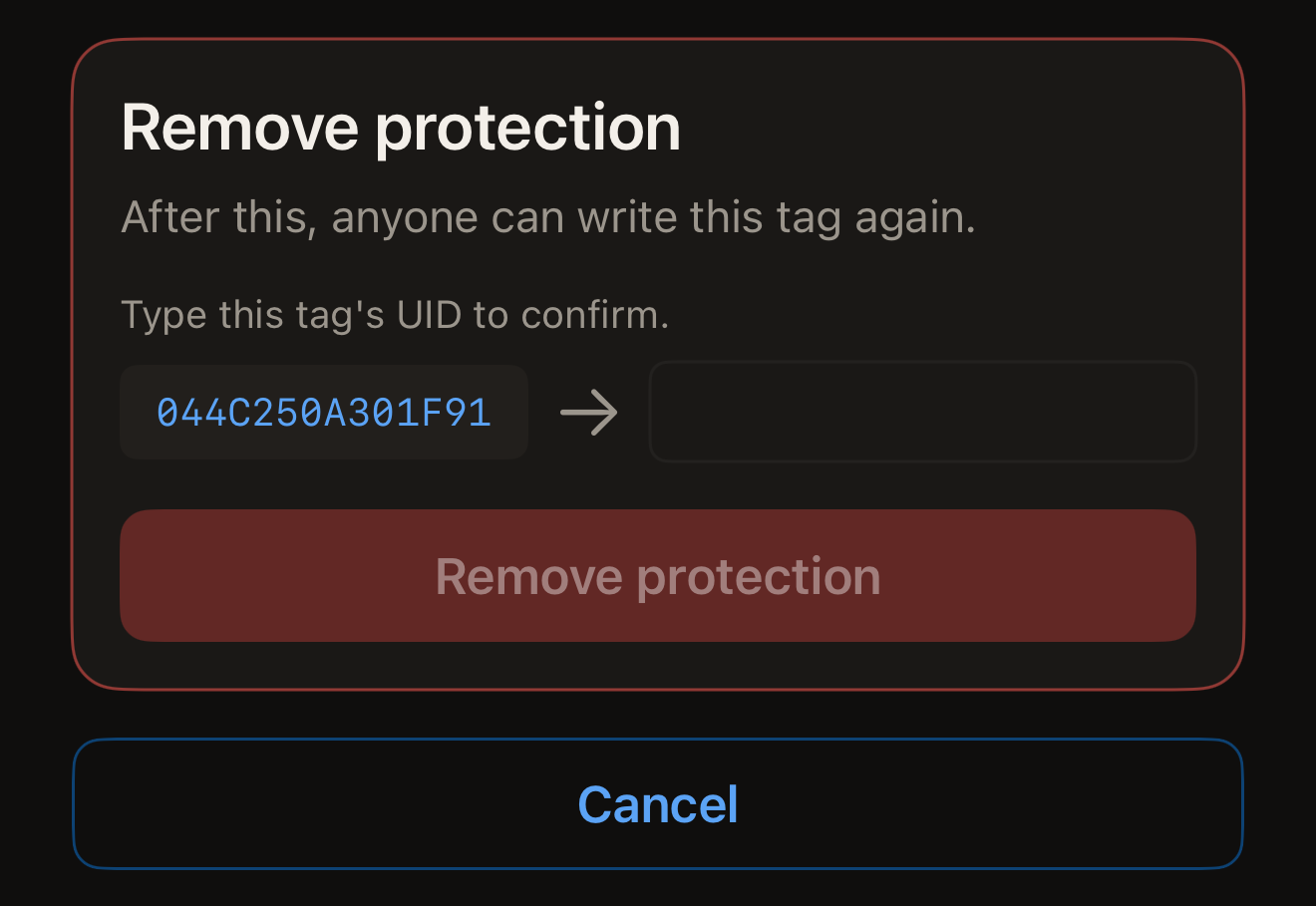
The Remove protection card shows the UID the app read, with an arrow to the empty field you type it into.
The write presents the key or password the app already holds for the tag. That is the one you entered on the Protection card, or the one you used when you protected it. On a tag it holds nothing for, the write stops at "Tag is protected" and asks for the secret. Which field it asks in depends on the chip:
On an NTAG424 DNA, enter it in Tag key (16-byte AES).
On a MIFARE Ultralight C, enter it in Tag key (16-byte 3DES).
On an NTAG21x, a MIFARE Ultralight EV1 or an ICODE SLIX2, enter it in Tag password (4 bytes).
Then tap Unlock & continue. No extra tap follows, because the app already read the tag's UID. The confirmation card comes next. Type the UID, tap Remove protection, then hold the tag once more.
If the tag refuses the password
On an NTAG21x or a MIFARE Ultralight EV1, one tap presents one password. A tag that refuses it stops answering for the rest of that tap. The app never tries a second password on the same tap.
When the tag refuses the password, the "Tag is protected" card comes back and reads "That password didn't unlock the tag. Check it and try again." Its field starts empty, so the refused password is not sent again unless you type it. Enter the password, tap Unlock & continue, and hold the tag once more. Cancel returns the screen to its starting state.
If the removal fails for another reason, the screen offers Enter a different password. It takes the screen back to its start, and the next run asks for the password again in an empty field.
When the tag refuses the password you entered, and that password was not already FF FF FF FF, the app offers one specific thing to try. A card headed "Try the tag's factory default password" appears under the failure on the Remove password screen. A removal can finish on the tag and still report a failure. The tag is then holding FF FF FF FF rather than the password you entered. That value is what every NTAG21x and MIFARE Ultralight EV1 leaves the factory with. Tap Try the factory default to send it on the next tap. Until the tap runs, the screen says which password it will send. It reads: "The next tap will present this tag's factory default password (FF FF FF FF) instead of the one you entered."
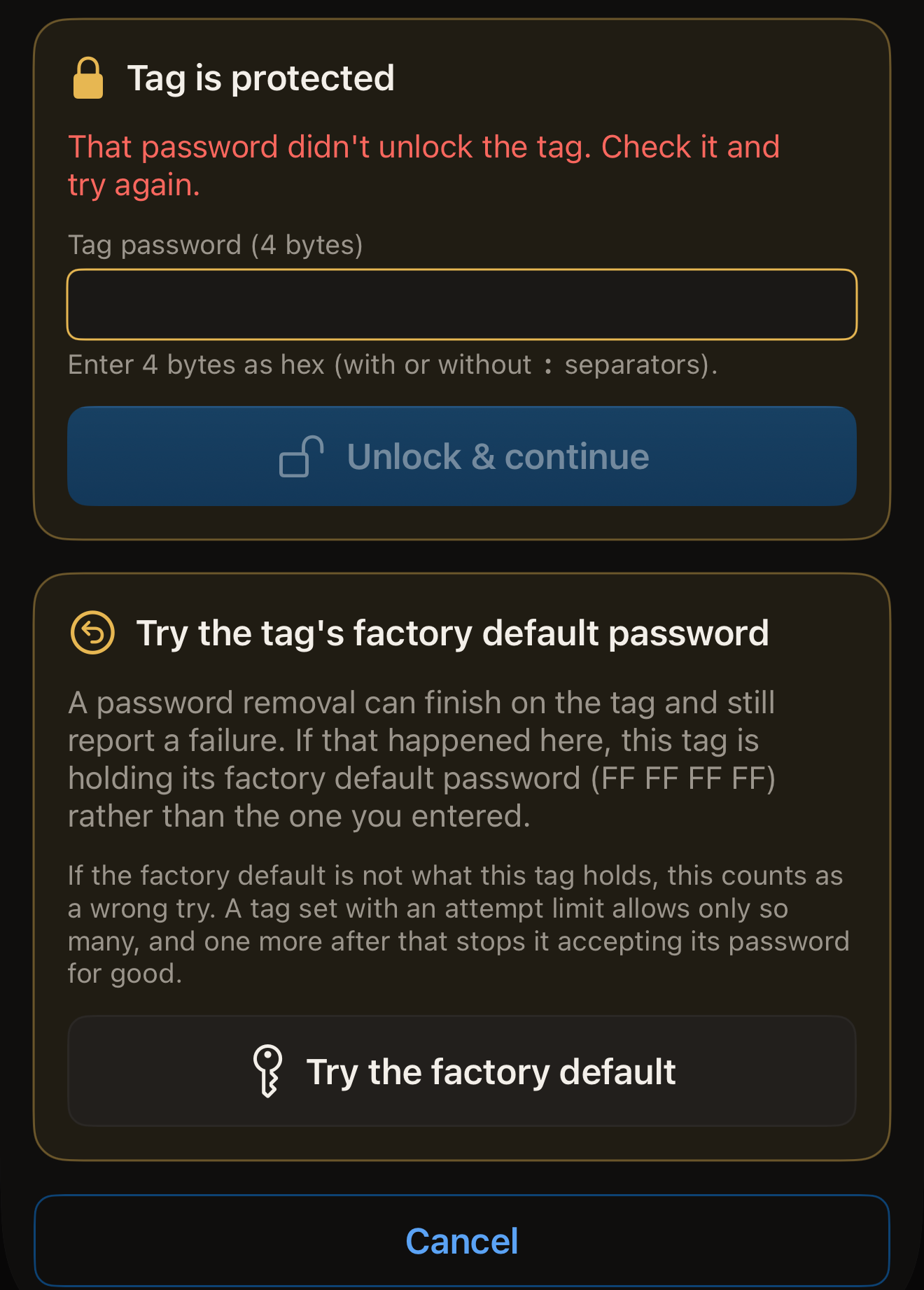
When the factory default opens the tag, the app says so once the run is done. The message reads: "The factory default password is what opened this tag, so an earlier removal had already gone through on it. The password you were keeping for this tag is not the one it holds."
If the removal does not finish
Two taps mean two chances for the tag to move away early. The app reads the tag's protection back before it reports anything, so the message names what the tag now holds:
"Password removed." is a success wherever it appears, including on a screen that is otherwise reporting a failure. The protection was read back as gone.
"This tag is still protected. Nothing has been lost: hold it against the phone again to finish removing the password." means the protection was read back as on. Run the removal again with the same password.
"Couldn't confirm whether the password was removed. Hold the tag against the phone again to check." means the tag went out of range before the app could read its protection. Run the removal again to find out where the tag stands.
If no password you have opens the tag, its protected memory stays as it is. Tag protection says why a lost password cannot be recovered.
See also
Documentation licensed under CC BY 4.0