
Settings
Hex NFC has three settings, and they share one screen with the app's version number, a way to send feedback or rate the app, and its legal documents. On the Hex NFC home screen, tap the gear button in the top right; it carries no word, and VoiceOver reads it as Settings. The sheet that opens is titled Settings. The groups below run in the order the screen shows them.
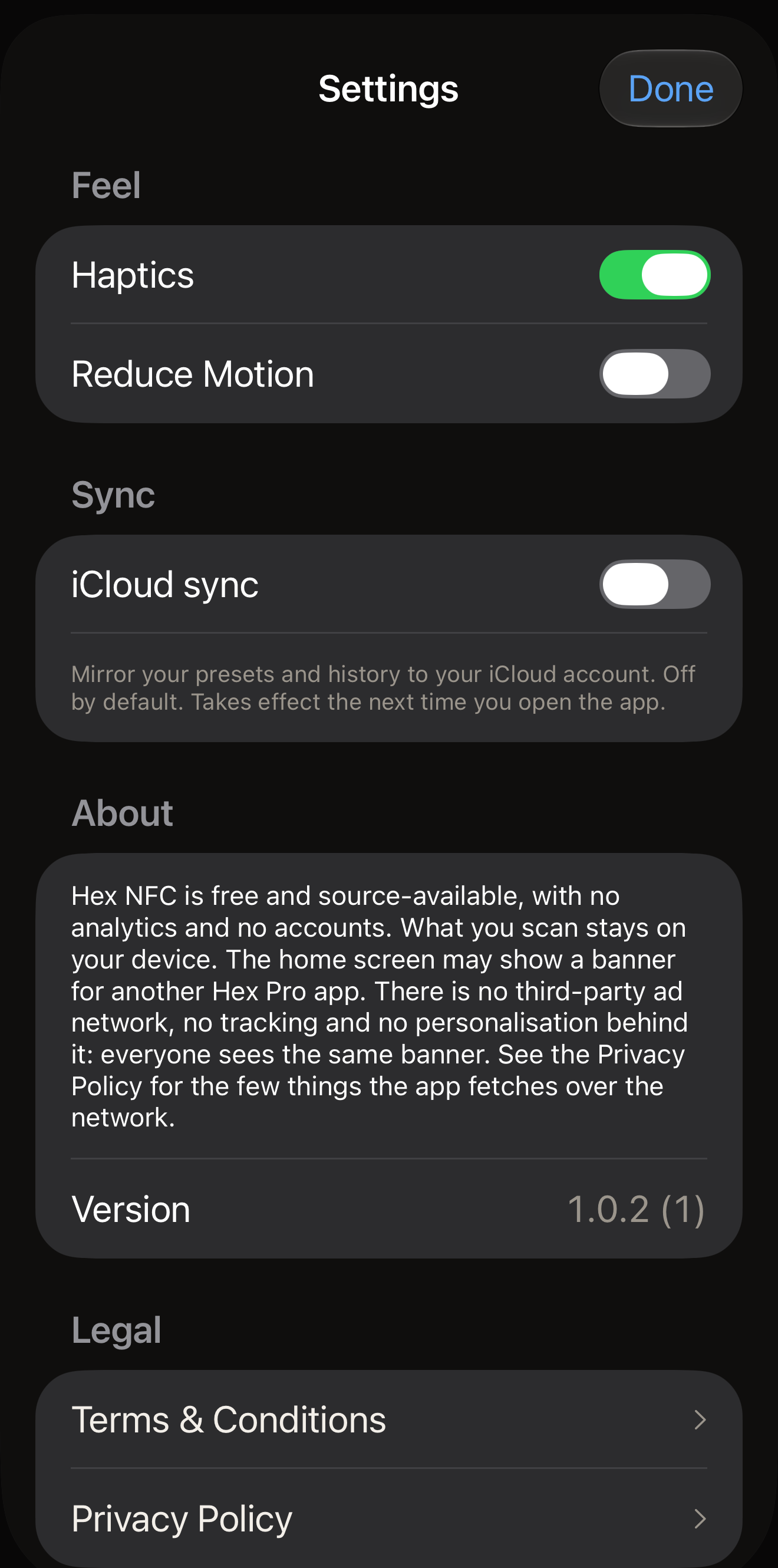
Feel
| Setting | What it does | Default |
|---|---|---|
| Haptics | Vibrates your iPhone during a scan, a write and the other moments the app marks. Turning it off stops those vibrations at once. | On |
| Reduce Motion | Cuts back the app's animations. The app reduces motion when this switch or your iPhone's own Reduce Motion setting is on, so turning this one off does not undo the system setting. | Off |
While your iPhone's own Reduce Motion is on, a line under the row reads "System Reduce Motion is on: animations are already minimised."
Sync
| Setting | What it does | Default |
|---|---|---|
| iCloud sync | Mirrors your presets and your scan history to your iCloud account. Tag passwords are never mirrored. They stay in the Keychain on the iPhone that set them. | Off |
Hex NFC builds its library once, at launch, so turning iCloud sync on or off changes nothing until you close the app and open it again. The line under the row says as much. Closing it means quitting the app. Going back to the iPhone's Home Screen leaves Hex NFC running, and the switch you moved keeps doing nothing.
Turn on iCloud sync
Step 1Open Settings
In Hex NFC, on the home screen, tap the gear button in the top right.
Step 2Turn on iCloud sync
Turn on iCloud sync. The switch moves, and nothing else changes yet.
Step 3Close Hex NFC and open it again
Follow Close and reopen the app. The app rebuilds its library as it starts, this time with sync running.
Step 4Check for a warning
Tap the gear button again and look under iCloud sync. The explanation there reads "Mirror your presets and history to your iCloud account. Off by default. Takes effect the next time you open the app." If a second paragraph follows it, sync did not start; see When sync does not start.
Close and reopen the app
Step 1Close Hex NFC
Swipe up from the bottom edge of the screen and pause until the open apps appear. On an iPhone with a Home button, double-press the Home button instead. Then swipe up on the Hex NFC card, and the card leaves the screen.
Step 2Open Hex NFC again
Tap the Hex NFC icon. The app rebuilds its library as it starts, with whatever iCloud sync was set to when you closed it.
Turning iCloud sync off again needs the same close and reopen. Either way your presets and your history stay on this iPhone. Hex NFC does not delete what iCloud already holds. Another iPhone signed in to the same account keeps everything it has received. What stops is the flow of new changes from this one.
When sync does not start
If the switch is on and iCloud was out of reach when the app started, sync does not start. A second line appears under the row: "Sync is not running. Your library is safe on this device, but iCloud was unavailable when the app started. Check that you are signed in to iCloud, then reopen the app." Your presets and your history are still on the iPhone. Only the mirroring stopped.
Three things cause that line:
The iPhone is not signed in to iCloud.
The account has no iCloud storage left.
The iPhone had no network when Hex NFC started.
Work through them in order.
Step 1Check your iCloud account
Open the Settings app on your iPhone and tap your name at the top. Sign in if you are asked to, then tap the iCloud row and read how much storage is left. If there is none left, free some space or change your storage plan on that screen.
Step 2Check the network
Make sure your iPhone is on Wi-Fi or mobile data. Loading a page in Safari settles it.
Step 3Close Hex NFC and open it again
Leave iCloud sync on and follow Close and reopen the app, then tap the gear button on the home screen. A second paragraph still under iCloud sync means sync still has not started.
About
The About section says what the app does and does not do: no analytics, no accounts, and what you scan stays on your device. It also covers the banner the home screen may show for another Hex Pro app. That banner has no third-party ad network, no tracking and no personalisation behind it. Everyone sees the same banner. For the few things the app fetches over the network, read Privacy and your data.
Under that paragraph, Version shows the app's version number followed by its build number in brackets.
Feedback and ratings
Send Feedback, below Version, opens a form for a message to Hex Pro.
Type what is not right, or what could be better, in the message box.
To get an answer, put your email address under Reply address (optional). Leave it empty and the message goes without one.
Check the list under Sent with your message. It shows the app version, iOS version, device model and language that go with your message. Nothing from your tags, scans or history is sent.
Tap Send in the top right.
The form thanks you once the message is on its way. If it cannot reach Hex Pro, it keeps what you typed and offers Email us instead, which opens your mail app with the message and the same details filled in.
Rate Hex NFC opens the app's page on the App Store, where you can give it a rating or write a review.
Now and then the home screen asks Loving Hex NFC? in a card along its bottom edge. It appears only after a few successful writes or protection changes, or after reading a transit card or a whole passport, and only when nothing in your recent scans failed. It waits until the home screen has sat untouched for ten seconds, comes back at most once a month, and never covers anything you need: the screen above it still scrolls and every button works.
Tap Love it! and Apple's rating sheet appears, when iOS chooses to show it. Tap Meh. and the card offers Send Feedback instead. Either answer is final, and the card does not ask again. Hide puts it away for a month, and opening anything from the home screen while it is up does the same.
Legal
Terms & Conditions and Privacy Policy each open the full document in a reading card that you scroll and then close with Done. Each card carries two lines above the first heading: the date that version took effect, and "Ars Vitae Pty Ltd, trading as Hex Pro (Australia)". Both documents are in English, whatever language the rest of the app is in.
The Terms answer what the app costs, in the section headed "3. The app is free", and Common questions answers it as well. The Privacy Policy is the document behind Privacy and your data.
See also
Documentation licensed under CC BY 4.0